
How to use the Diet App
DIET APP GUIDE
How to use the Diet App
In Hiro Clinic’s medical weight loss program, daily logging and monitoring are done in the “Diet App” inside our official app. When you log your weight, meals and how you feel, you get a reply from the AI “Sensei,” and graphs show your progress at a glance.
1Install the app and open the Diet App
Your weight loss records are kept in the “Diet App” inside Hiro Clinic’s official app (the app for bookings and your patient card). LINE is not used.
- Install the Hiro Clinic app and log in with the same email address and password you used for your booking.
- Open “My Page” at the bottom and tap “Diet App” below “Booking history.”
- There is no separate login for the Diet App; it opens right away. Tap the “×” in the top left to return to My Page.
*The “Diet App” button is shown to patients who have made a booking for medical weight loss.
2Getting started: your goal and injection day
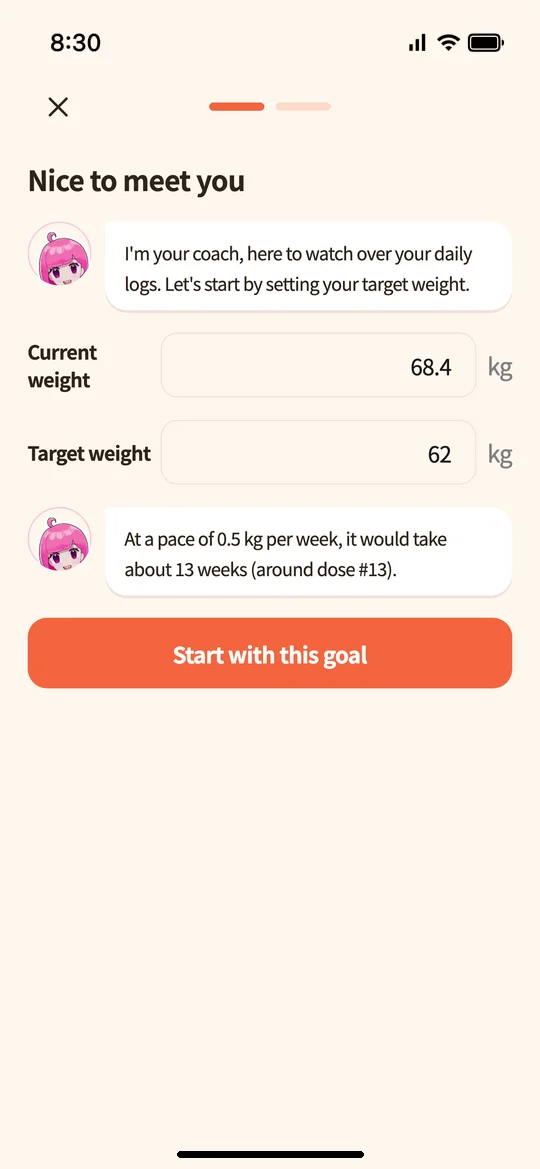
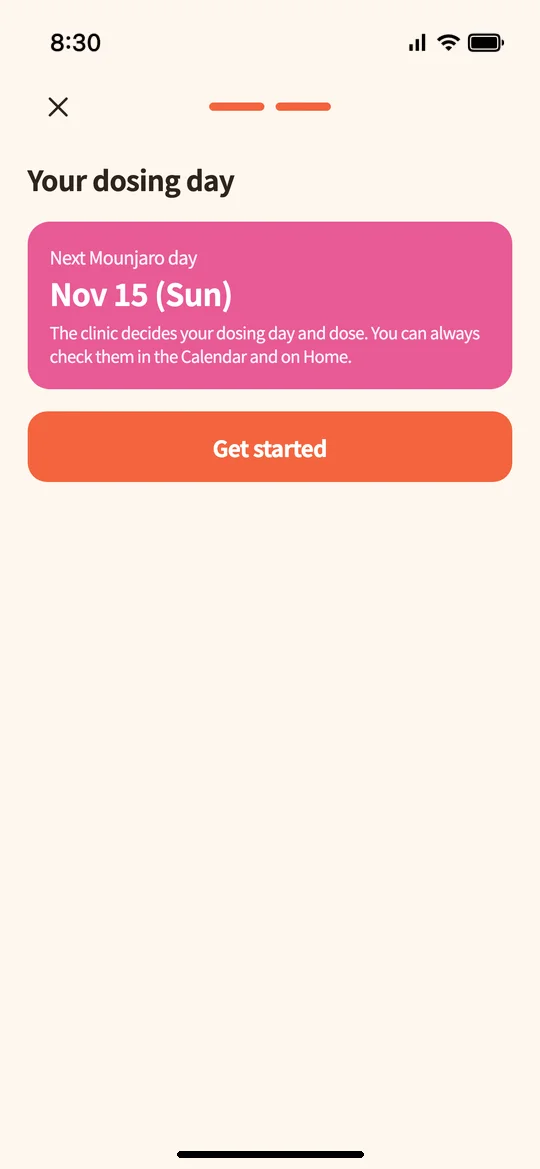
The first time you open the app, you set it up in two steps.
- Welcome: Enter your “current weight” and “goal weight.” “Sensei,” who keeps an eye on your progress, shows an estimate of how long it will take to reach your goal (about ◯ weeks at a pace of 0.5 kg per week). Tap “Start with this goal.”
- Confirm injection day: Your next Mounjaro day is shown. Your injection days and dose are decided by the clinic. Tap “Start” to go to the home screen.
3If you used the LINE version: transferring your records
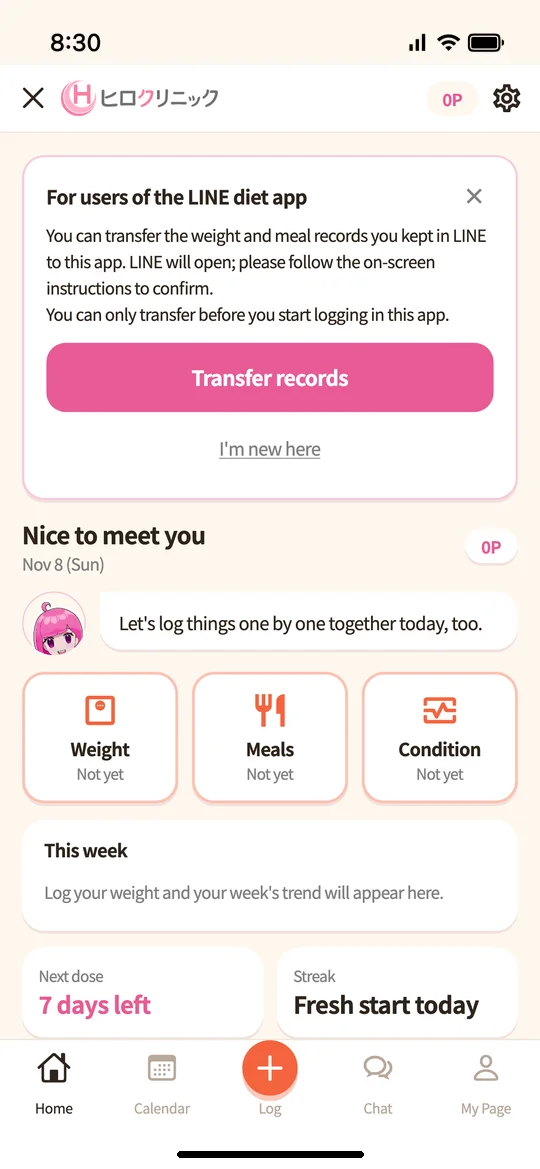
If you kept records in the previous LINE version of the Diet App, a notice “For users of the LINE version of the Diet App” appears at the top of the home screen.
- Tap “Transfer records” to open LINE, then follow the on-screen instructions.
- The weight and meal records you kept in LINE will be moved to this app.
*Records can only be transferred before you start logging in this app. If you do not want to transfer them, tap “Use for the first time.”
4Home: see today’s tasks at a glance
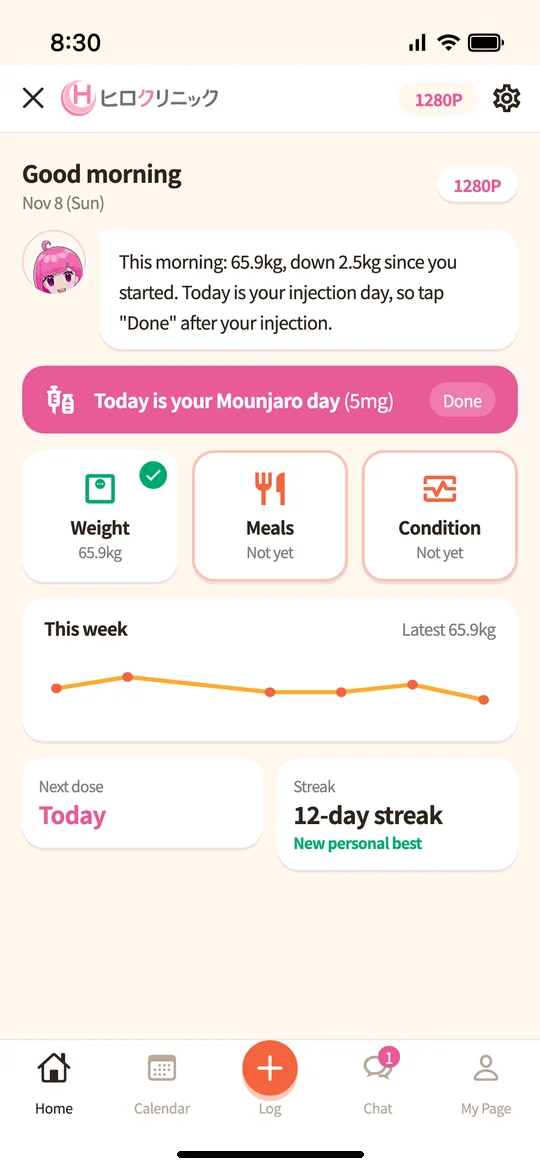
The home screen shows a short message from Sensei, the status of today’s “weight, meals, how you feel” logs (completed items get a green check), your weight over the past week, your next injection day, and your logging streak in days.
On days when you inject Mounjaro, a pink banner says “Today is your Mounjaro day.”
At the bottom of the screen there are five buttons: “Home,” “Calendar,” “+ Log,” “Chat,” and “My Page.”
5Logging: weight, meals, how you feel, injections
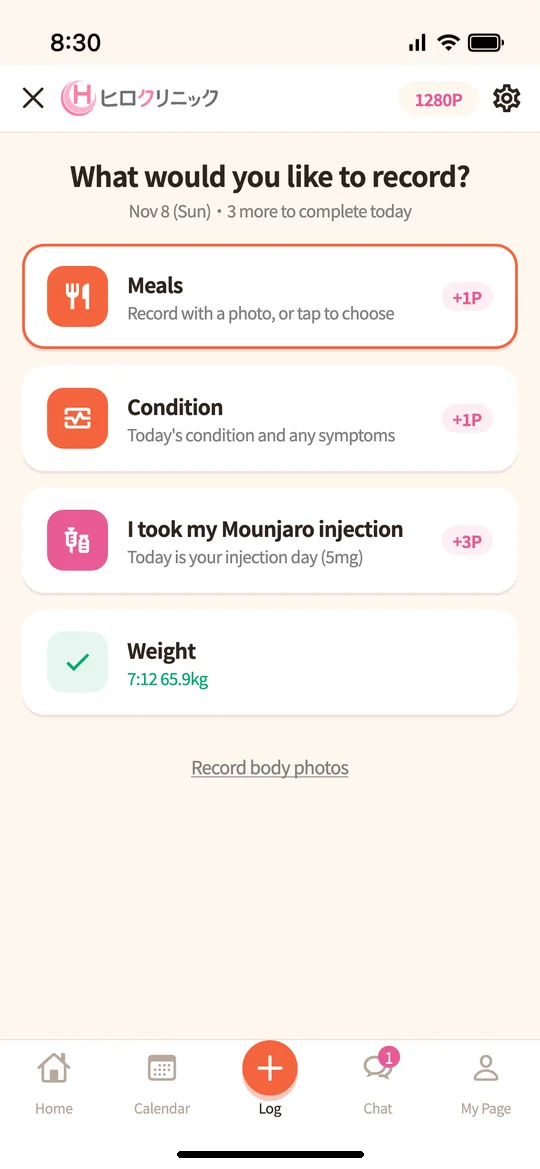
- Tap “+ Log” in the middle at the bottom to see “What would you like to log?” Items you have not logged yet appear at the top, with the points you can earn shown on the right.
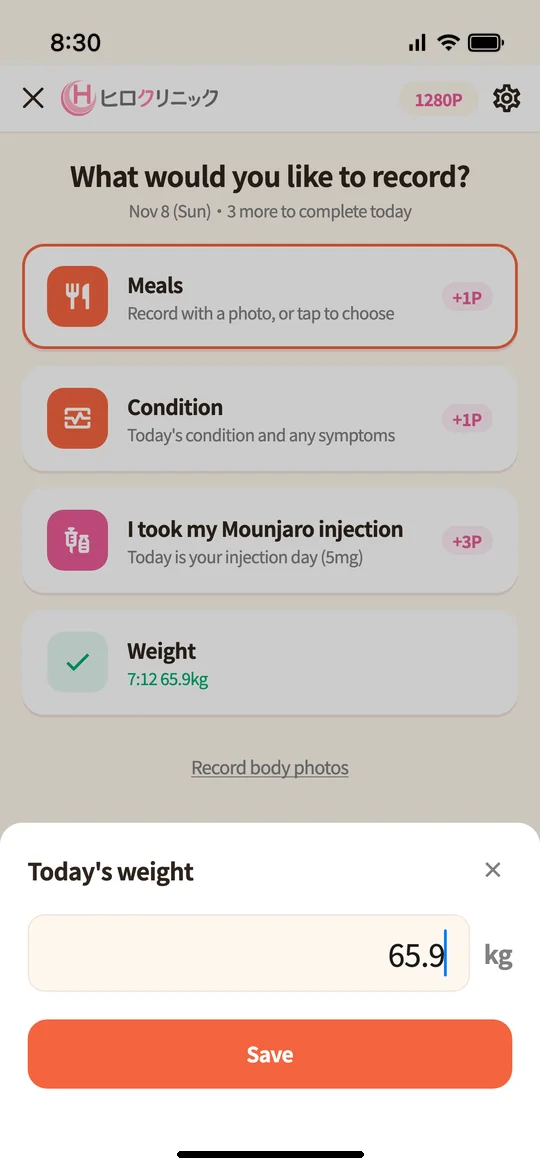
- Weight: Enter the number and tap “Save.” We recommend weighing yourself every morning under the same conditions.
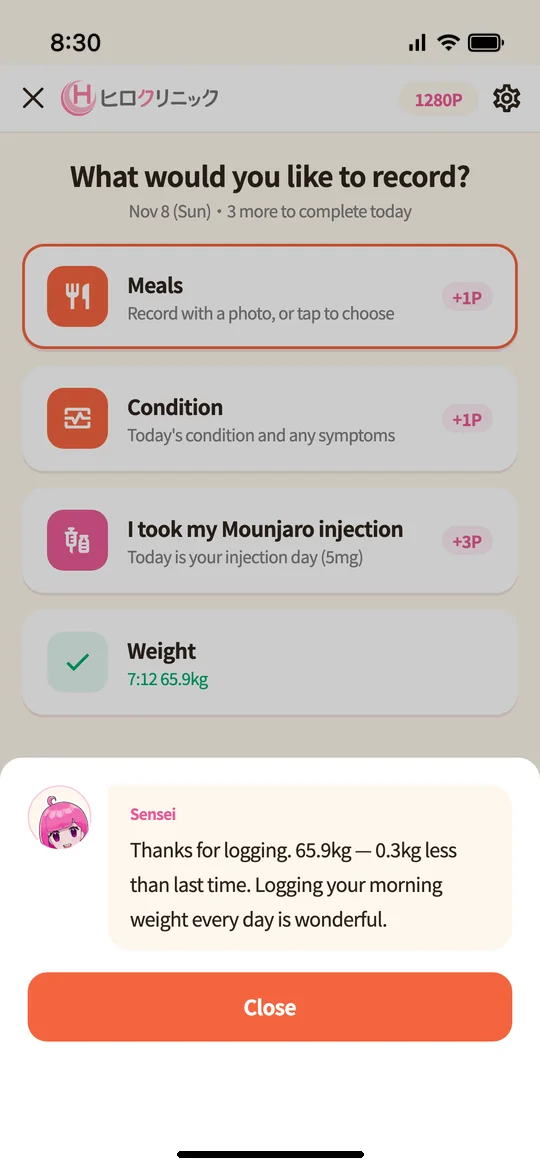
- As soon as you log, you get a reply from Sensei (AI).
6Meals: tap to choose, or log with a photo
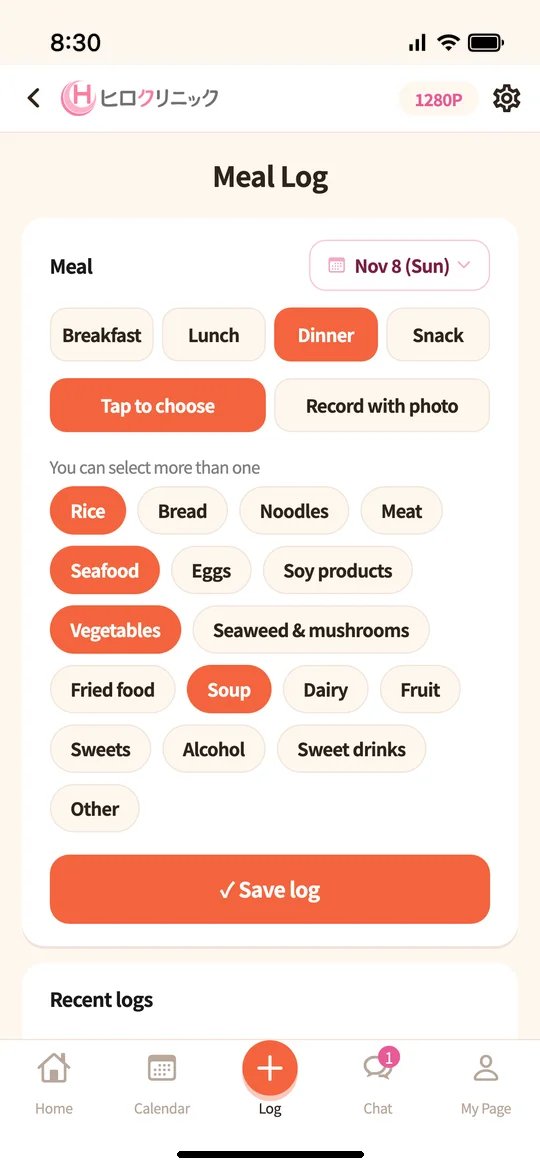
Under “Meal,” choose breakfast, lunch, dinner or snack, then choose how to log.
- Tap to choose: Tap what you ate, such as rice, meat or vegetables, then tap “Log.”
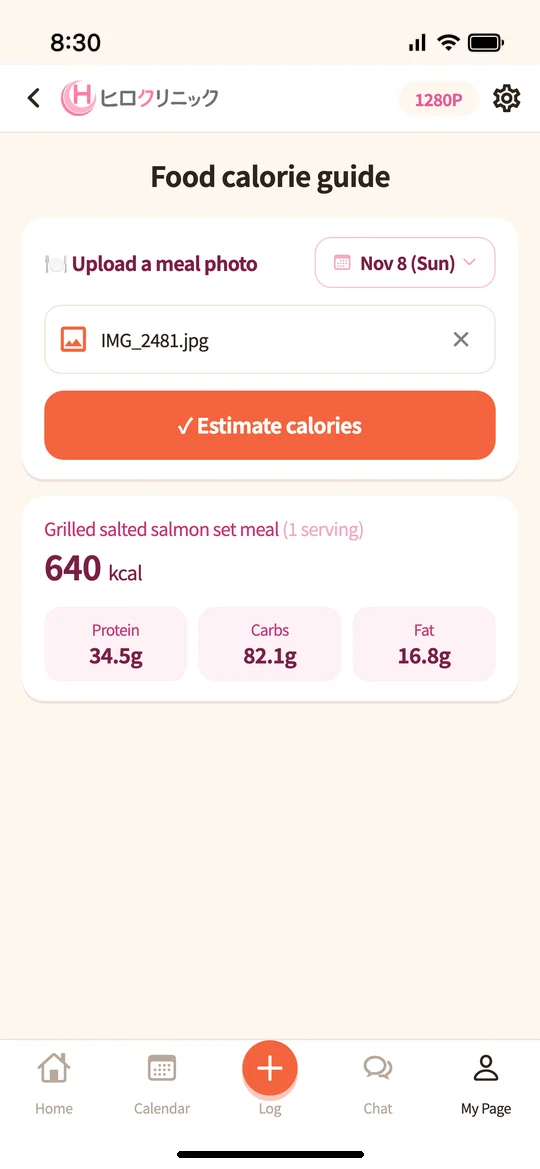
- Log with a photo: Take a photo of your meal with the camera or choose one, then tap “Log.” The app estimates the dish name and calories from the photo.
With “Food calorie estimates” on My Page, you can get estimates of calories and the amounts of protein, carbohydrates and fat from a photo.
7How you feel: log side effects here too
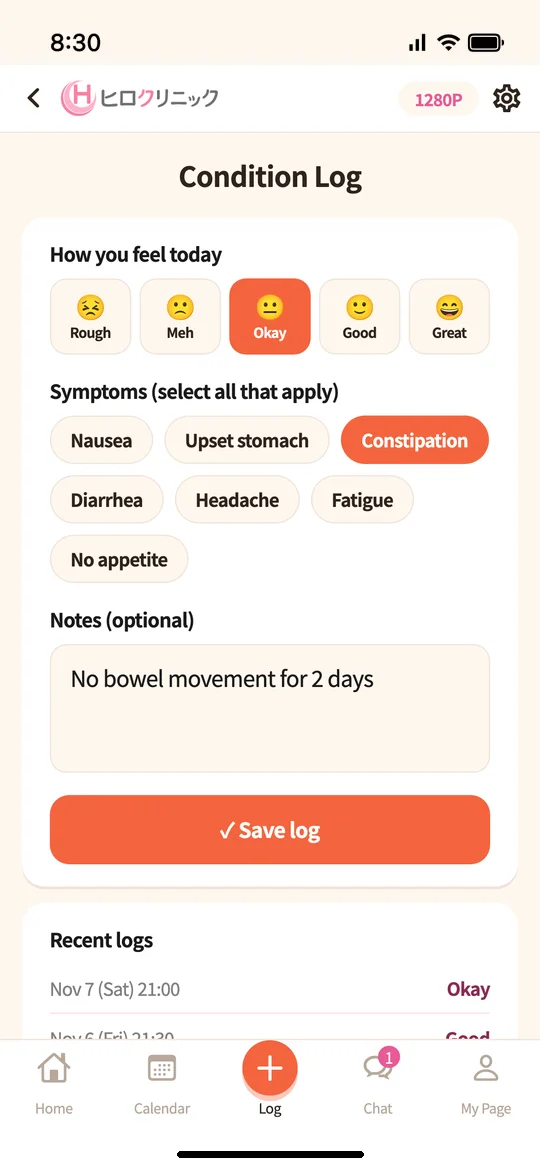
Choose how you feel today on a 5-point scale, and select any symptoms that concern you, such as nausea, upset stomach, constipation or diarrhea. You can also add a note.
By continuing to log symptoms that tend to appear at the start of treatment, you can see how they change over time, which makes it easier to tell your doctor at your consultation.
If you have distressing symptoms, such as persistent severe abdominal pain or vomiting that keeps you from keeping fluids down, do not wait to log them in the app; please call the clinic.
0120-241-929 (toll-free; hours 9:00–18:00)
8Graphs: see your progress
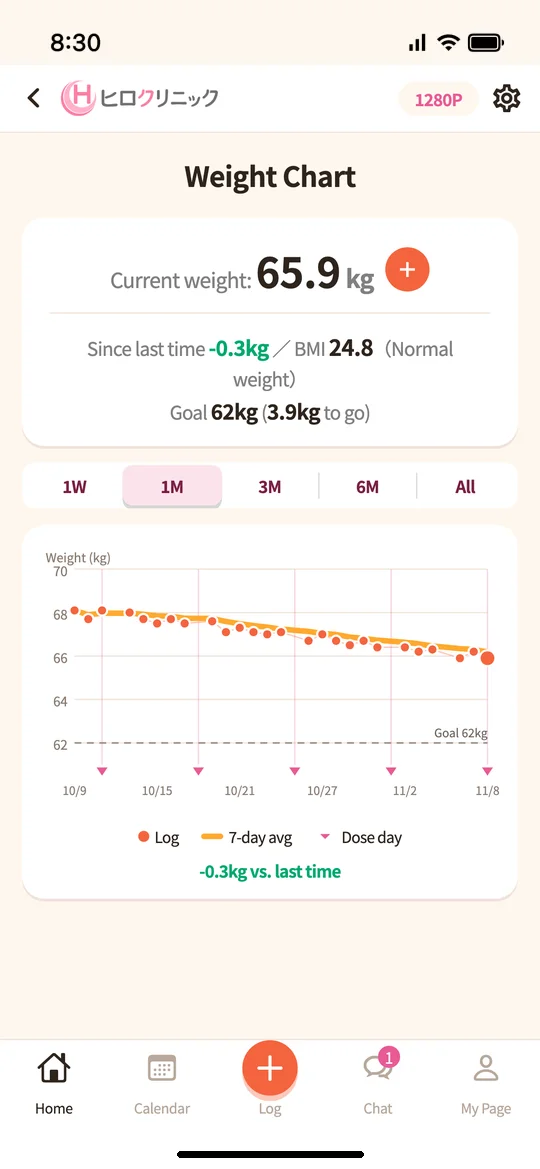
Tap “This week” on the home screen to open your weight graph. It shows your current weight, the change since your last entry, your BMI, and how many kg are left to your goal.
You can switch the range from 1 week to all time, and see your daily entries, a 7-day average line, a goal line, and your Mounjaro injection days on one graph.
9Body photos: keep track of visible changes
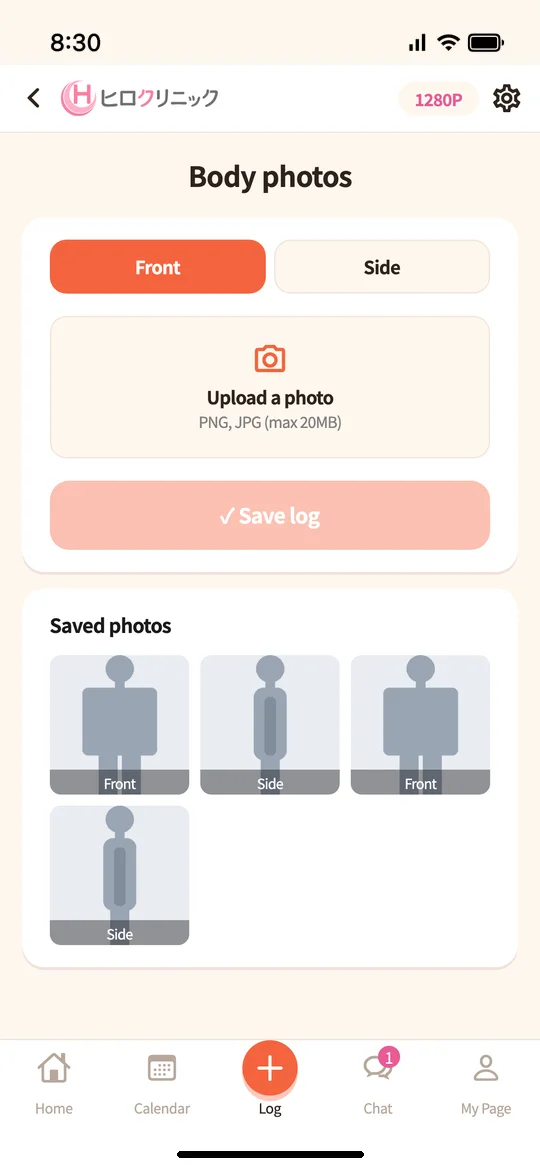
Choose “Front” or “Side,” upload a photo, and tap “Log.” You can view your logged photos side by side to compare them. Even during periods when your weight is slow to change, you can see changes in how you look.
*Body photos can only be viewed within your own app.
10Calendar and Mounjaro injections
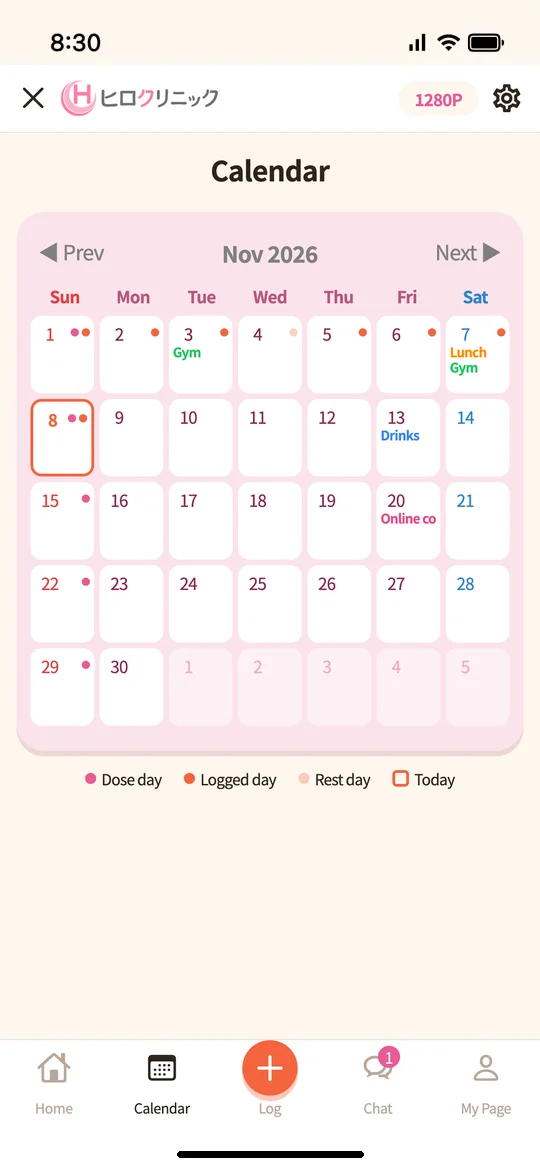
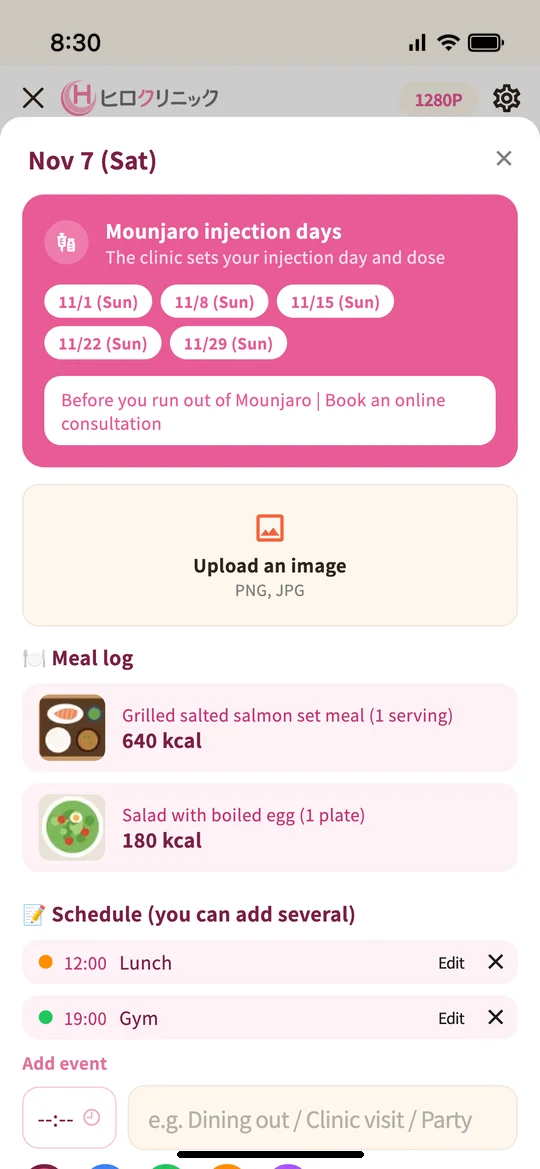
The Calendar shows injection days (pink) and days you logged (orange). Tap a date to see that day’s meal logs or to add plans (such as a lunch gathering or the gym). You can also book an online consultation from here before your Mounjaro runs out.
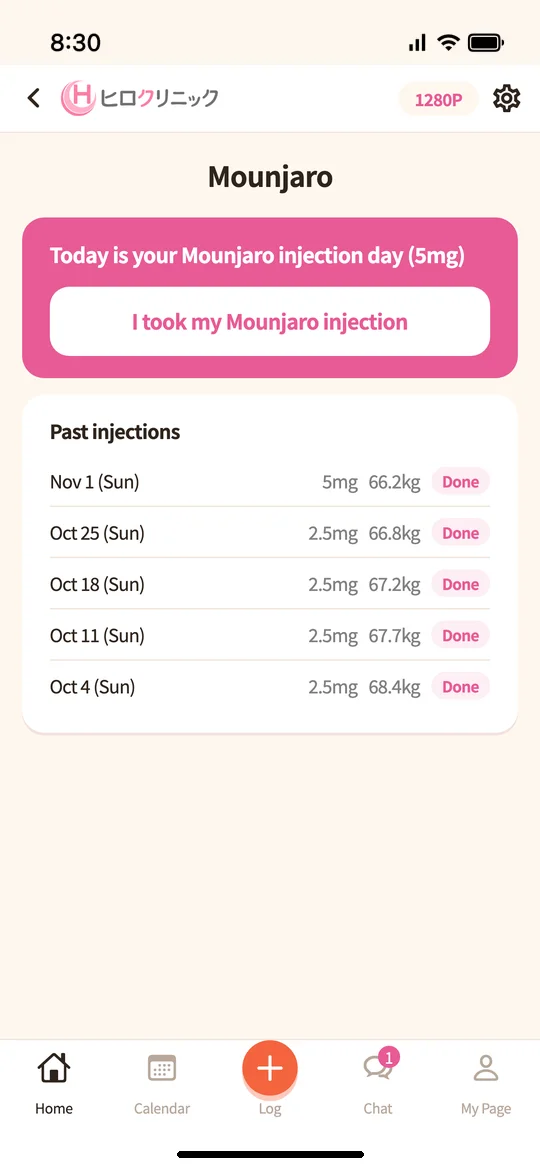
On injection days, tap “I injected Mounjaro” to log it. You can also see a list of past injections (date, dose, and your weight that day).
11Chat: messages from Sensei
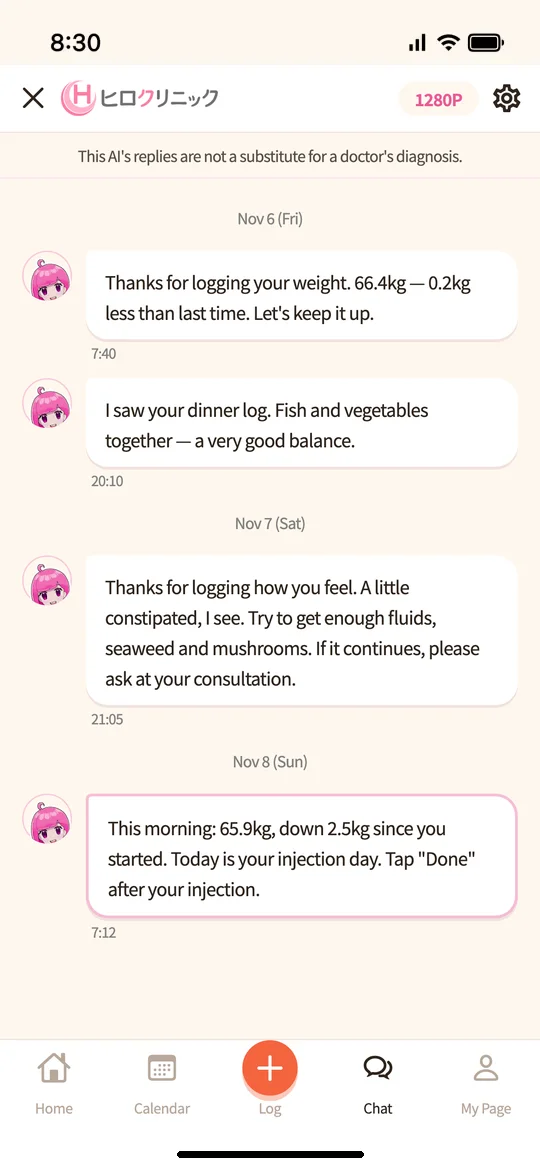
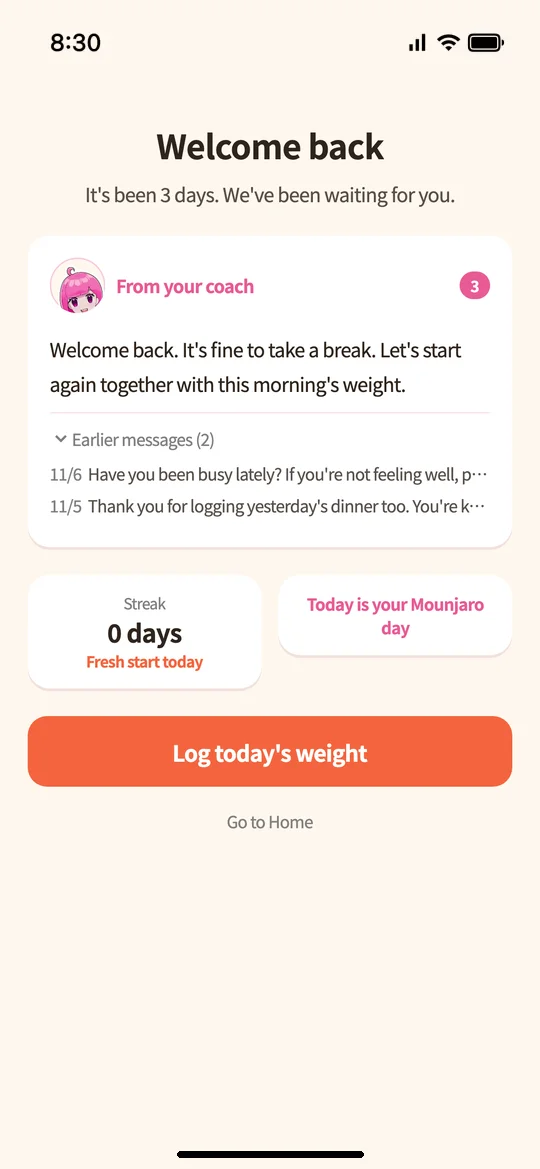
“Chat” lists Sensei’s replies to your logs and other messages by date. When there is a new message, a number appears on the button at the bottom. If you haven’t logged for a while, a “Welcome back” screen lets you read the messages sent while you were away.
*Sensei provides AI-based encouragement and messages and is not a substitute for a doctor’s diagnosis. Questions about your medication or health are handled at your consultation.
12My Page and points
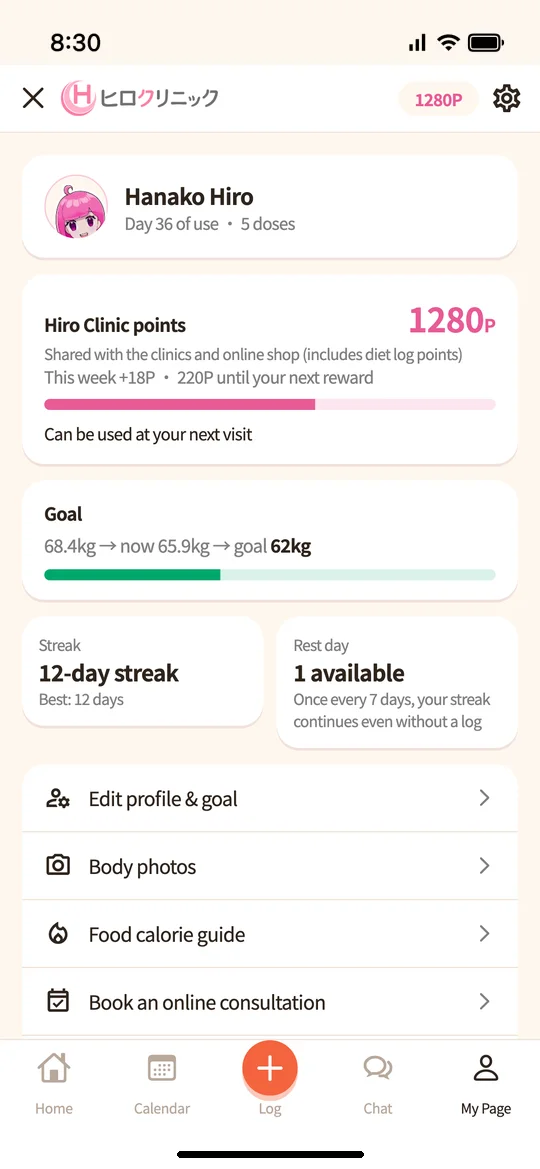
My Page shows the number of days you’ve used the app, number of injections, progress toward your goal, and your logging streak. You can also open your basic information and goal settings, body photos, calorie estimates, online consultation booking, and the online shop from here.
Logging your weight, meals and how you feel each earns points once a day, and you can also earn points by logging Mounjaro injections and achieving logging streaks. Your points are “Hiro Clinic points”, shared with our clinics and online shop, and can be used at 1 point = ¥1, for example at your next consultation.
*You can use a “day off” once every 7 days. Even if there is a day you can’t log, your streak continues.
If you have questions
If you have trouble using the app, please call the clinic.
0120-241-929 (toll-free; hours 9:00–18:00)
Book an online consultationBack to medical weight loss home
*Screens shown are examples. Names, numbers and dates displayed differ from actual ones. Screens may change with app updates.
Last updated:

 Free consultation on LINE
